
How to Use an Auto Clicker on Android (No Root)
Tired of tapping the same button over and over? Want to free up your hands while a game grinds itself, or bulk-like a feed without wearing out your thumb? An auto clicker is exactly what you need — and with VV Auto Clicker it works on any Android device, without root access.
In this guide we'll set up two kinds of automation: simple repeat taps at a single point (using TikTok likes as the example) and repeated swipe gestures (using a dating-app-style left swipe as the example). The same steps apply to any app or game on your phone.
What you need: an Android phone or tablet (Android 5.0+), the free VV Auto Clicker app, and about ten minutes.
1. Download VV Auto Clicker
Install VV Auto Clicker free from the Google Play Store. We use it in this guide because it needs no root access and keeps ads light, which makes the setup genuinely quick.
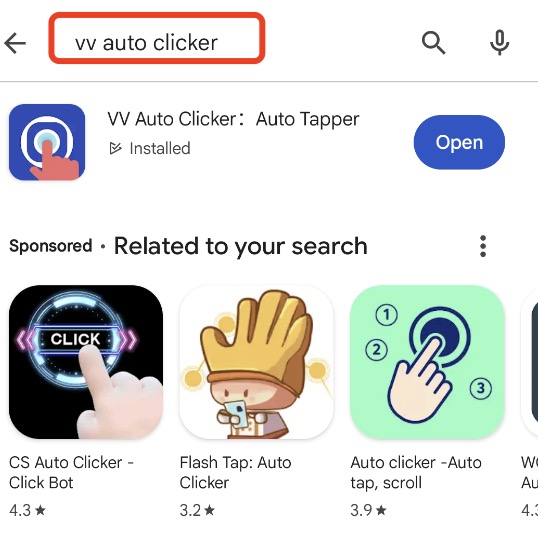
2. Grant permissions
After installation, open the app and grant the Accessibility permission. This is the official Android mechanism that lets VV Auto Clicker perform taps and swipes on your behalf — the same permission screen readers use. No root, no unusual privileges.
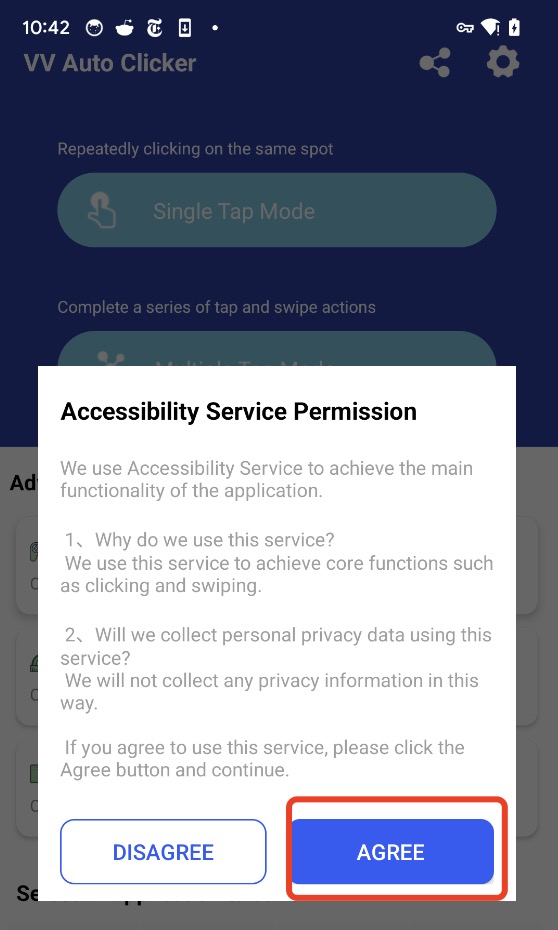
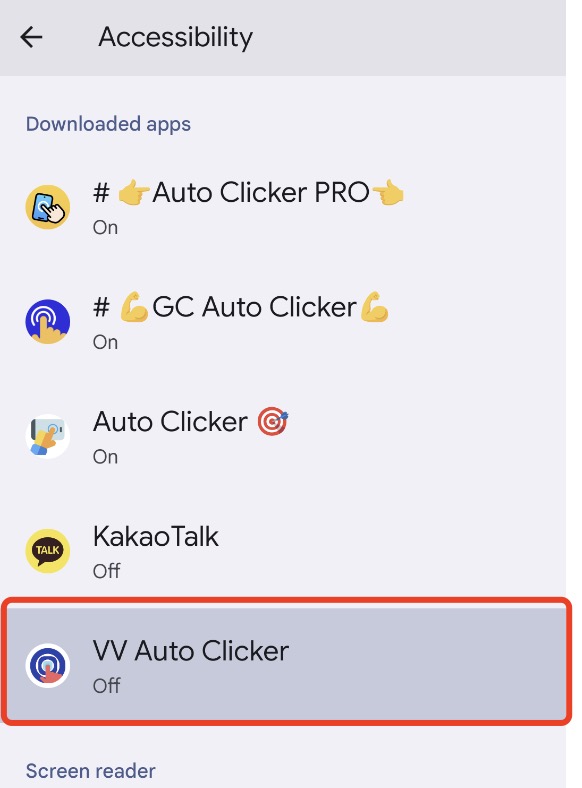
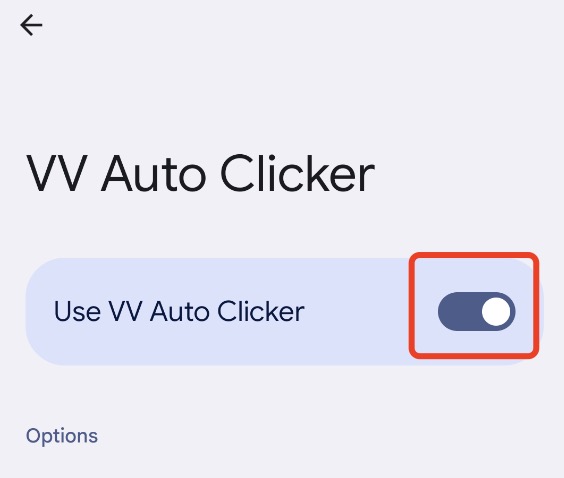
3. Repeatedly click a single point
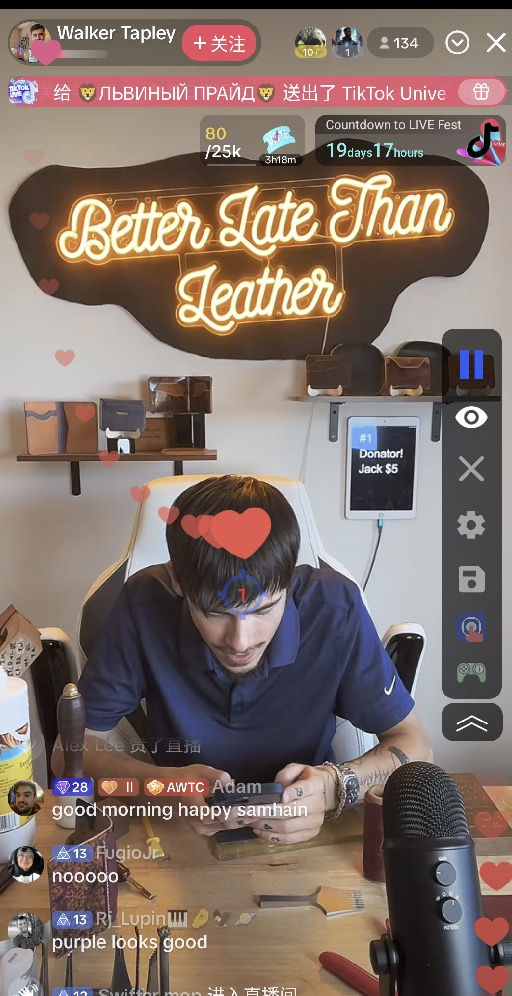
Using TikTok likes as our example:
- Tap the Single Tap Module button.
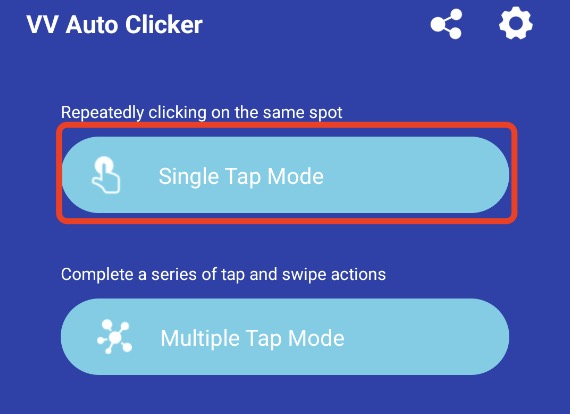
- Select Point 1 to configure its click delay.
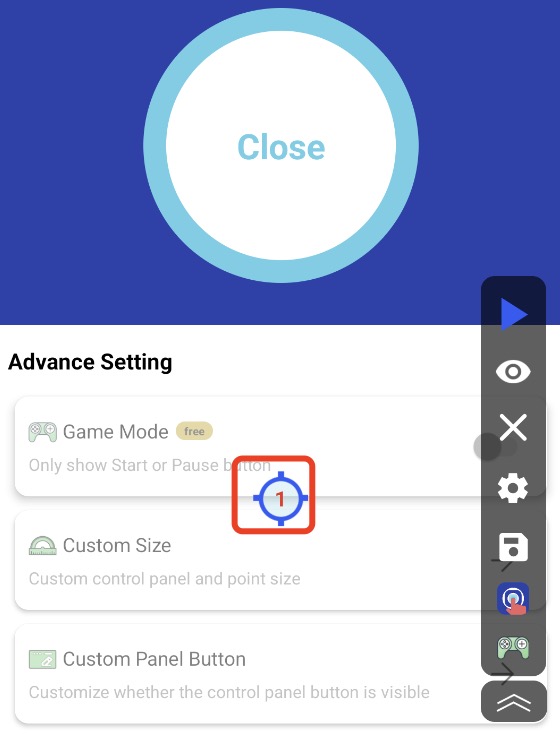
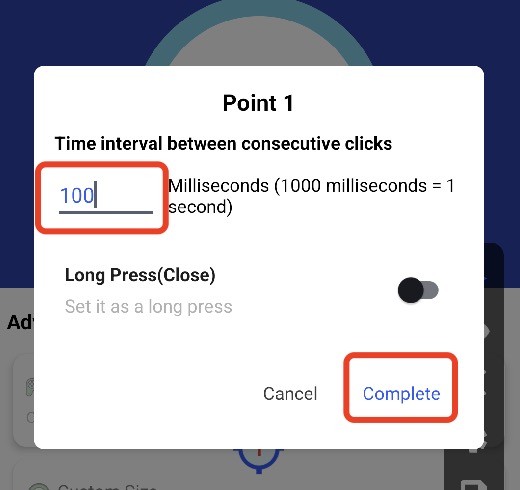
- Set the delay to 100 ms for seamless, continuous liking.
- Open TikTok and pick your favourite creator.
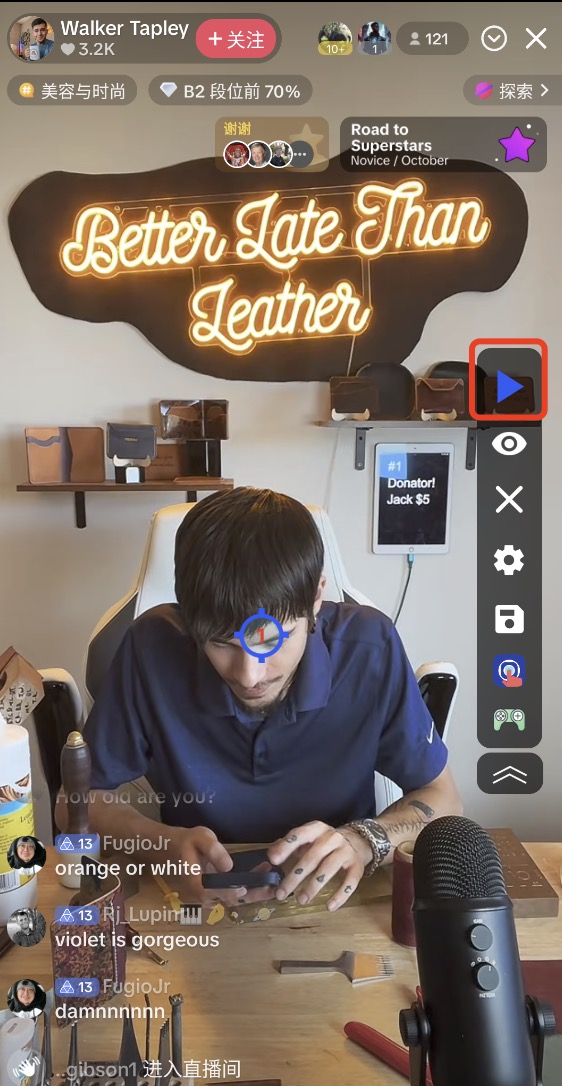
- Tap Start — and watch the likes land themselves.
4. Automate swipes
Using a dating-app-style left swipe as our example:
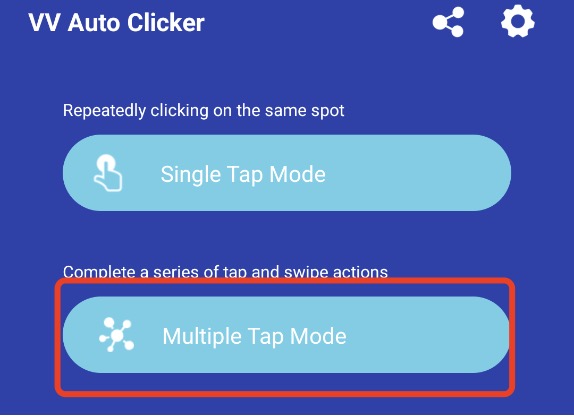
- Return to VV Auto Clicker and tap Multiple Tap Mode.
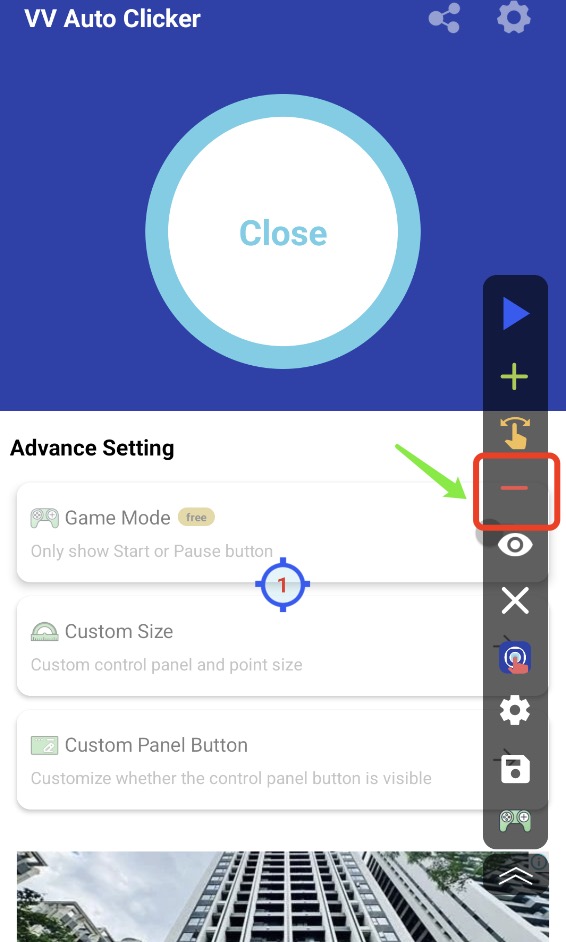
- Tap the delete button to remove the default points.
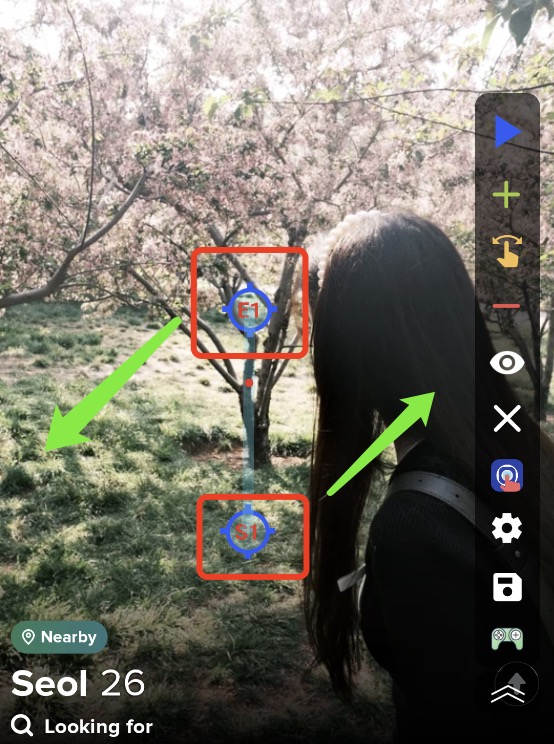
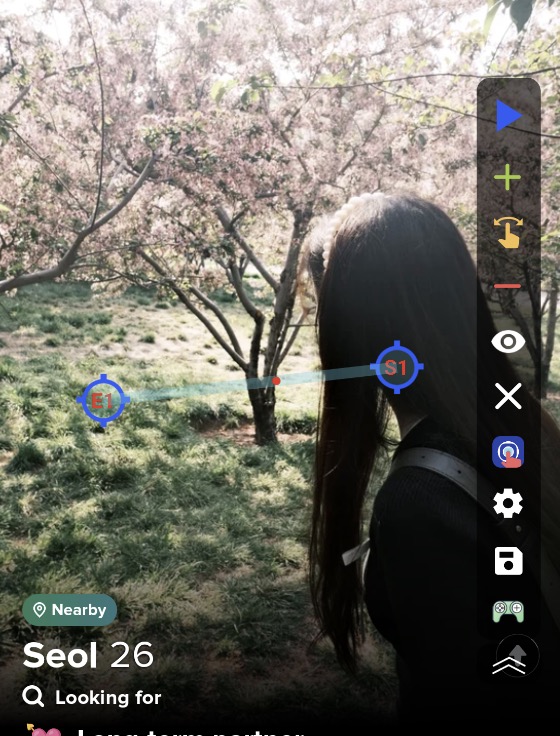
- Open the target app and tap to create a swipe event — you'll see two
anchor points appear on the screen.
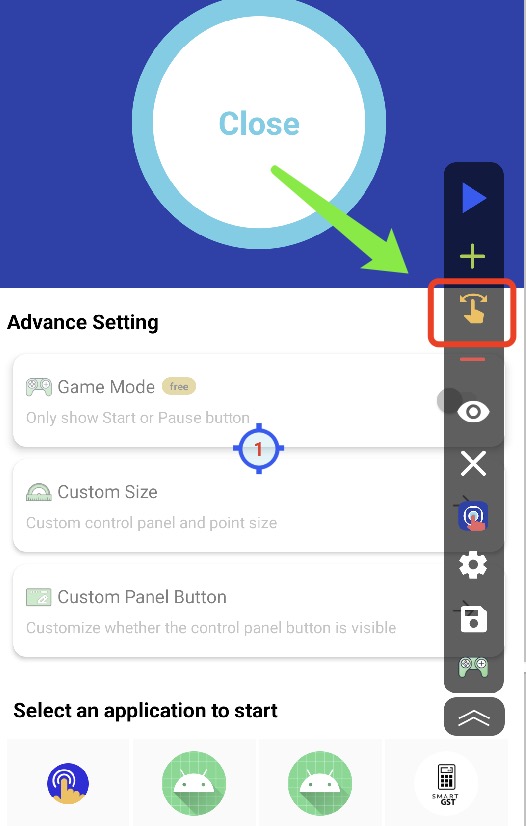
- Drag the two points to set the swipe's direction and length (here: left).
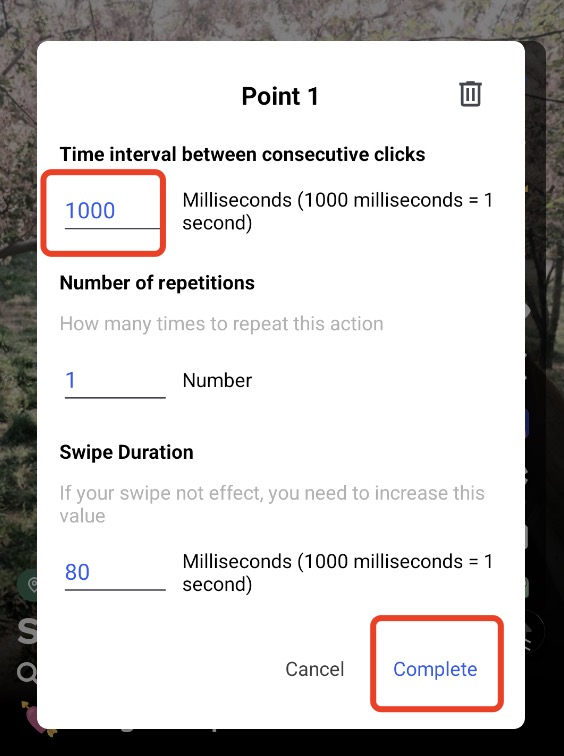
- Adjust the event interval to control the pause between consecutive swipes.
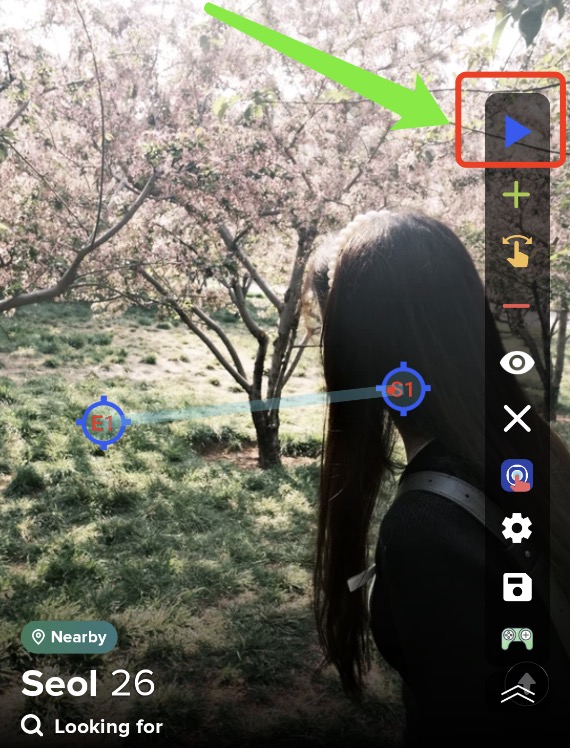
- Tap Start and let it run.
That's all there is to it
Single-point taps, multi-point sequences, timed swipes — every automation in VV Auto Clicker follows the same pattern: place points → set intervals → press Start. Prefer watching over reading? The video tutorials cover the same ground in real games like Cookie Clicker and Merge Dragons, with versions in English, Japanese and Korean.